

Description
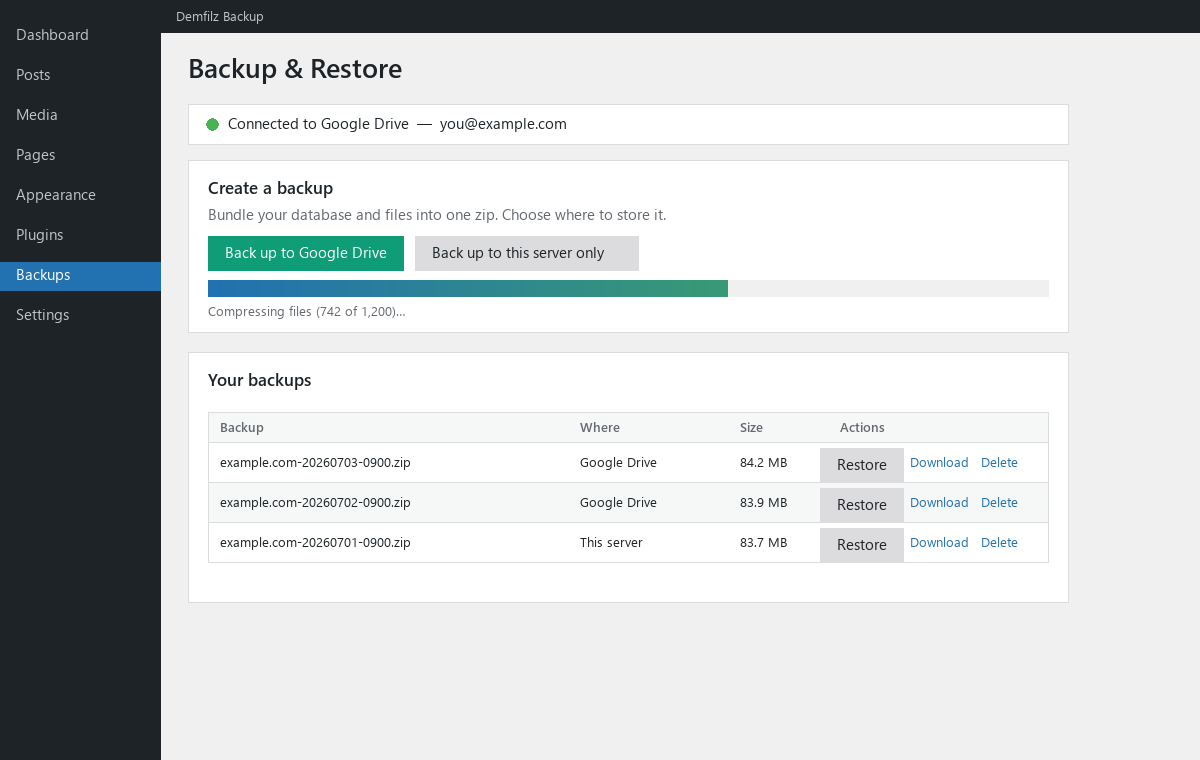
Demfilz Backup makes a complete backup of your WordPress site — the database and your files — packaged into a single zip and stored safely in your own Google Drive. When you need it, restore that backup to bring your site back exactly as it was.
It is built for real-world hosting: backups and restores run in small, resumable steps so large sites don’t hit PHP time or memory limits, and uploads and downloads to Google Drive are chunked (resumable).
Back up
- One click to bundle the database + files into a single
.zip. - Store the backup in Google Drive (your own account) or keep it on the server.
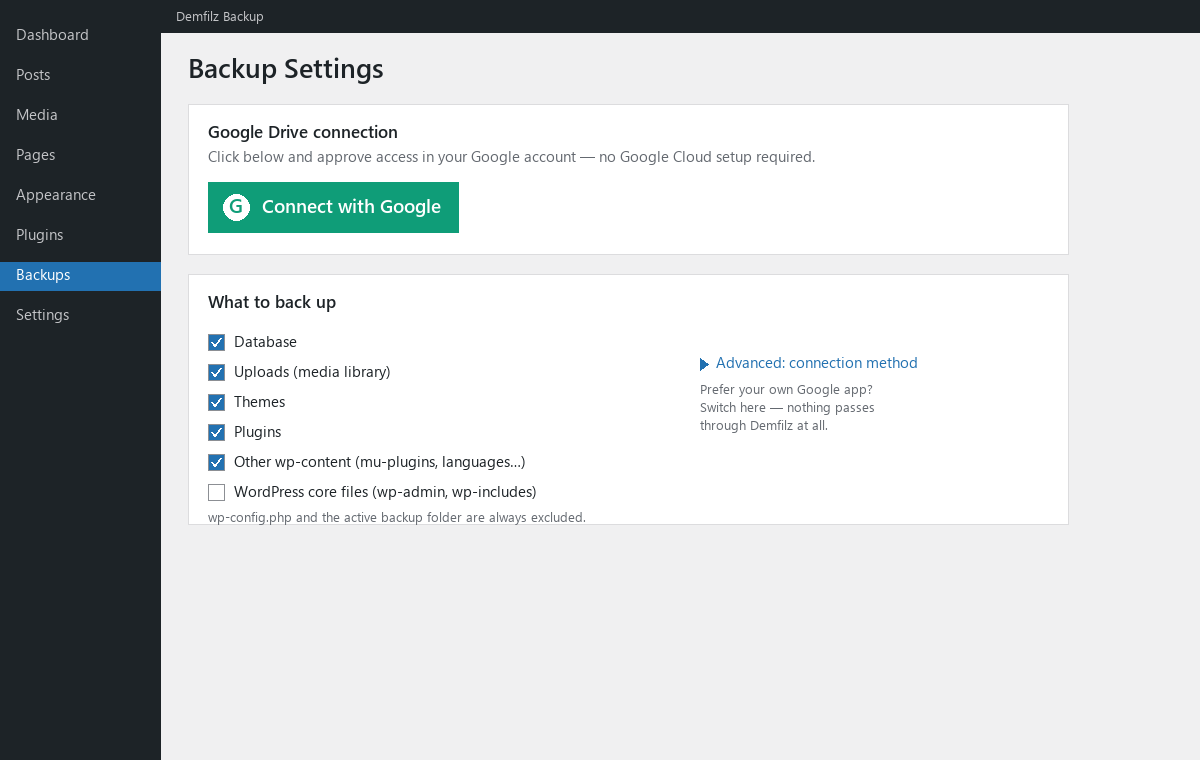
- Choose exactly what to include: database, uploads, themes, plugins, other wp-content, and (optionally) WordPress core.
wp-config.phpand the plugin’s own backup folder are always excluded.
Restore
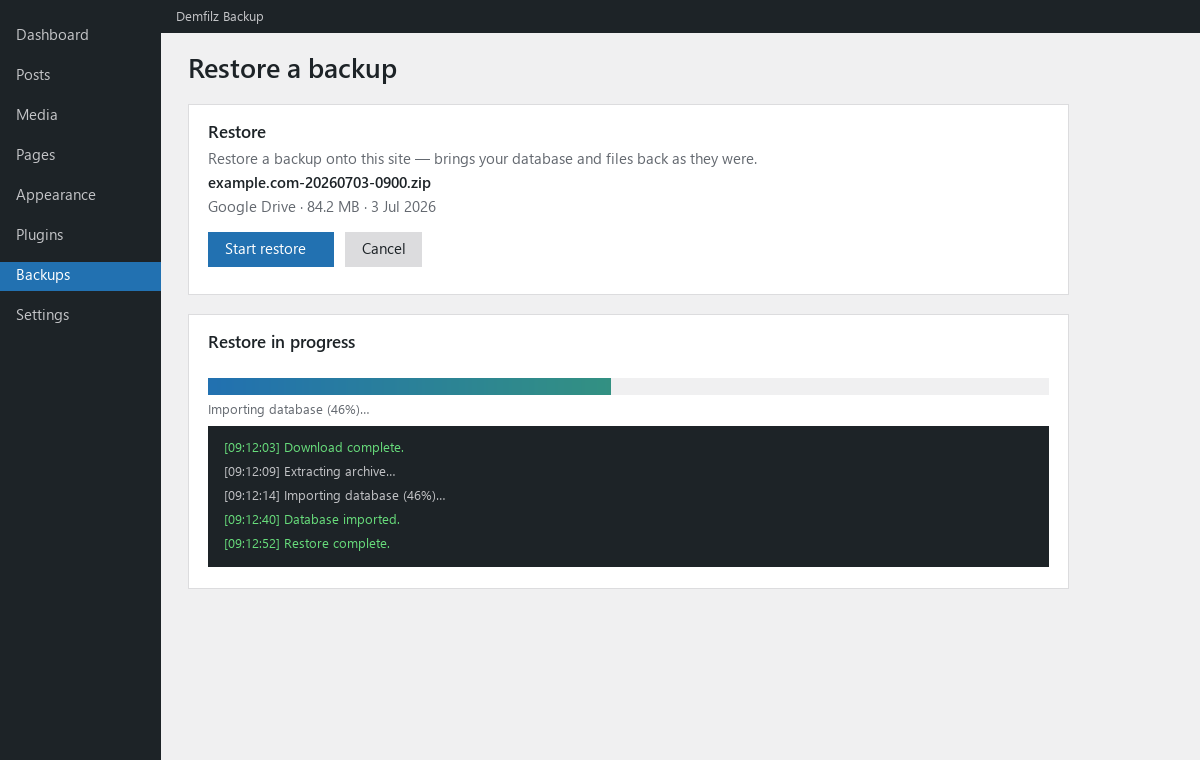
- Restore from a backup in Google Drive, from a local copy, or by uploading a
.zip. - Brings your database and files back as they were — a straightforward rollback / disaster recovery for the site.
Automatic, scheduled backups
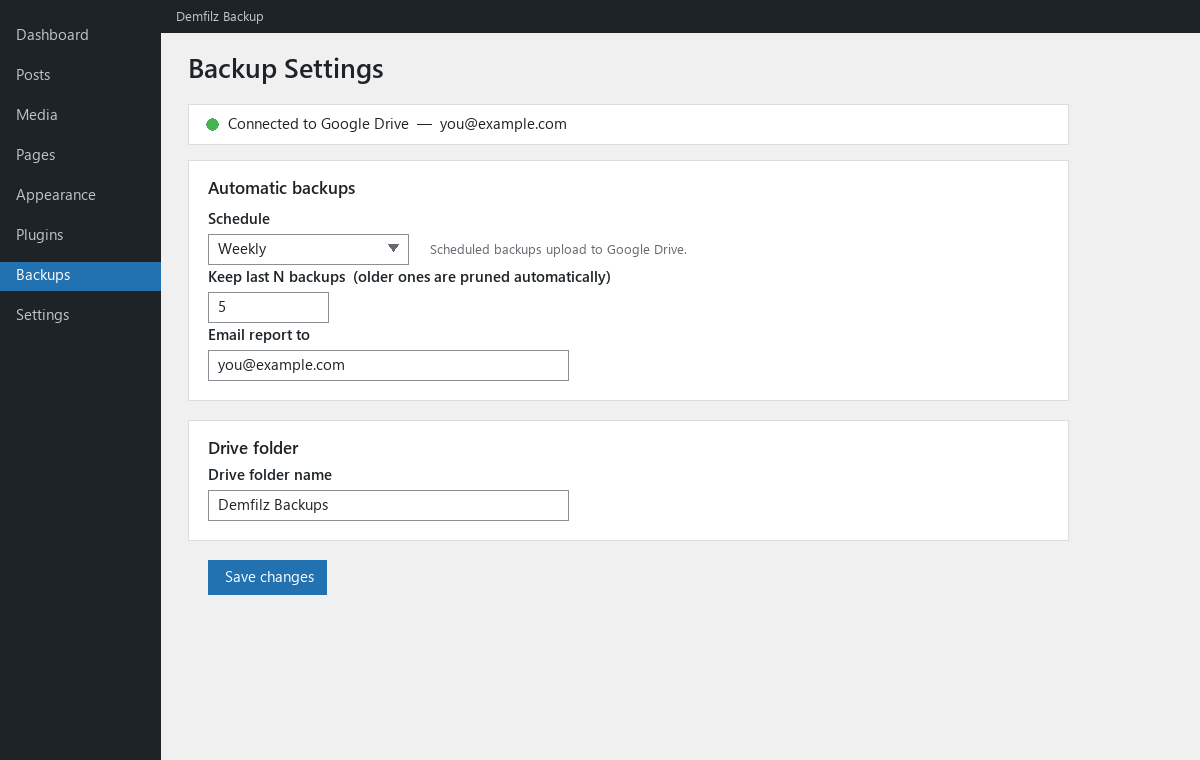
- Daily, weekly or monthly backups to Google Drive via WP-Cron.
- Retention: keep only the most recent N backups and prune the rest automatically.
- Optional email report after each scheduled backup.
Connect in one click
By default you connect Google Drive with a single Connect with Google click — no Google Cloud project, no copying keys. This uses a Demfilz sign-in helper that only brokers the Google authorization; your backups themselves always go directly from your server to your Google Drive. Only the drive.file scope is requested, so the plugin can see and manage only the backup files it creates.
Prefer to use your own Google app? Switch to Advanced Use my own Google app on the Settings screen and paste your own Client ID and Secret — then nothing passes through Demfilz at all.
Moving a site to a new domain
This plugin restores a backup onto its own site. If you want to move or clone a site to a different URL, the separate Demfilz Backup Pro add-on (available from https://demfilz.com/demfilz-backup) adds serialization-safe cross-URL migration — it is a distinct plugin and is not required for backing up or restoring your site here.
External services
This plugin can connect to the following external services. Which ones apply depends on your settings.
Google Drive (always, once connected). Your backups are uploaded to, listed in, downloaded from and deleted from your own Google Drive account via the Google Drive API (https://www.googleapis.com/). This only happens after you connect an account, and only for the plugin’s own backup files (drive.file scope). See Google’s Privacy Policy (https://policies.google.com/privacy) and Terms (https://policies.google.com/terms).
Demfilz Google sign-in helper (default “Automatic” connection method only). When you use the one-click “Connect with Google” button, the plugin contacts the Demfilz OAuth broker at https://api.demfilz.com/gdrive/ to complete Google sign-in and to refresh access tokens. What is sent: your site URL and the OAuth codes/tokens needed to complete the connection; the broker does not permanently store your tokens. This step exists because a public plugin cannot safely embed a Google client secret, so the secret-holding exchange happens server-side. If you instead choose Advanced Use my own Google app, this service is not used at all and the plugin talks only to Google. Demfilz privacy policy: https://demfilz.com/privacy .
Screenshots
Installation
- Upload the plugin to
/wp-content/plugins/demfilz-backup, or install it through the Plugins screen. - Activate it through the Plugins screen.
- Go to Backups Settings and click Connect with Google, then approve access. (That’s it — no Google Cloud setup.)
- Go to Backups Backup & Restore and click Back up to Google Drive.
Advanced (optional): use your own Google app. On the Settings screen open Advanced Use my own Google app, create a Google Cloud OAuth client (type: Web application) with the Google Drive API enabled, register the redirect URI shown, paste your Client ID and Secret, save, then click Connect with Google.
FAQ
-
Do I need a Google Cloud account or developer setup?
-
No. With the default connection method you just click Connect with Google and approve — your backups are stored in your own Google Drive. If you’d rather not use the Demfilz sign-in helper, you can switch to your own Google app under Advanced.
-
Does my backup data pass through Demfilz?
-
No. Your backup files always go straight from your server to your Google Drive. In the default connection method, only the Google sign-in (authorization and token refresh) is brokered by Demfilz; choosing “Use my own Google app” removes even that.
-
Can I move my site to a different domain?
-
Restoring onto a different URL (site migration) is provided by the separate Demfilz Backup Pro add-on, not by this plugin. This plugin backs up your site and restores it onto the same site.
-
Will a big site time out?
-
Backups and restores run in small steps, and Drive transfers are chunked and resumable, so large sites are handled without exhausting PHP limits. If your host is very strict, lower “Files per step” and “Database rows per step” on the Settings screen.
-
Does restoring overwrite my current site?
-
Yes. Restoring replaces the current database and files with the contents of the backup. Always keep a fresh backup before restoring.
-
Are my backups protected from public download?
-
Yes. Backups are stored in a protected folder with server rules that block direct web access (Apache and IIS) and directory listing.
Reviews
There are no reviews for this plugin.
Contributors & Developers
“Demfilz Backup” is open source software. The following people have contributed to this plugin.
Contributors
Translate “Demfilz Backup” into your language.
Interested in development?
Browse the code, check out the SVN repository, or subscribe to the development log by RSS.
Changelog
1.0.0
- Initial release: one-click “Connect with Google” (or use your own Google app), full-site backup (database + files) to Google Drive, scheduled backups with retention, and restore.